How to Convert a Hand Sketch to a Photorealistic Render: Step-by-Step (2026)
A practical step-by-step walkthrough for converting hand sketches to photorealistic architectural renders using AI. Settings, prompt patterns, and iteration tactics that actually work.
In this article
A practical step-by-step walkthrough for converting hand sketches to photorealistic architectural renders using AI. Settings, prompt patterns, and iteration tactics that actually work.
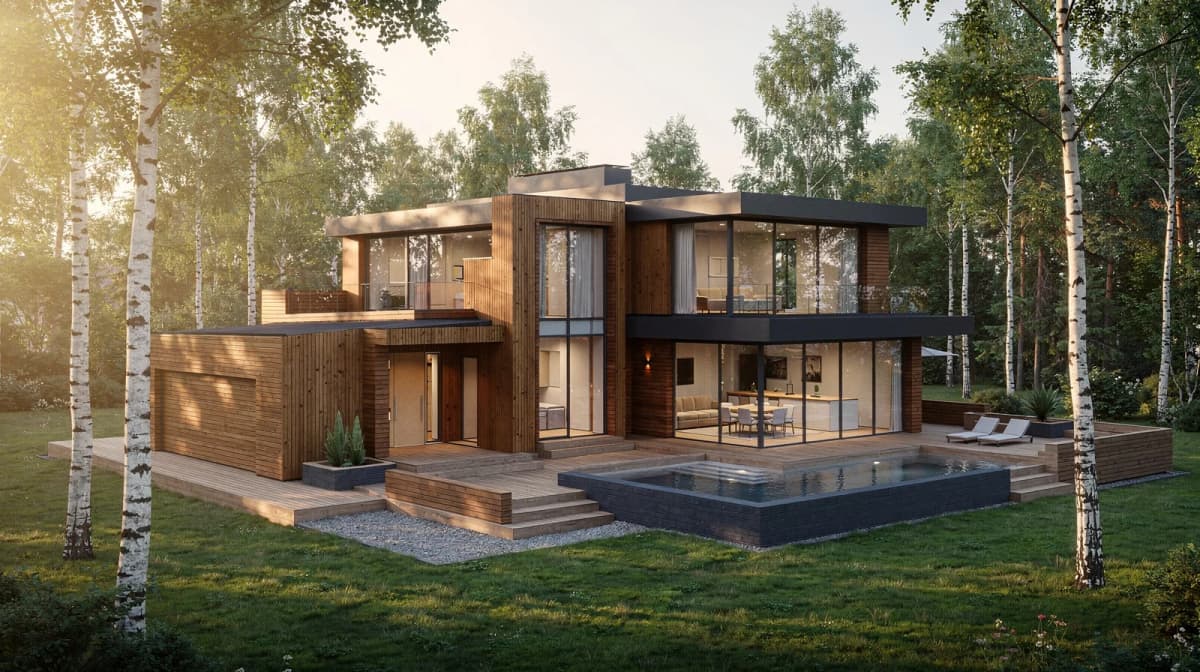
TL;DR. Scan or photograph your sketch, upload it to an AI rendering tool, choose a style and program, generate, then iterate. The whole process takes about three minutes the first time and under a minute once you settle into a workflow. If you want the framing and the why, read Sketch to Render AI: The Complete Guide. For the audience-and-workflow summary (architects / students / homeowners), see the sketch-to-render use case. This article focuses purely on the how.
You can follow along at aiarchgenerator.com; the free tier covers everything in this tutorial.
Before You Start: What You Need
- A sketch — pencil, pen, marker, or napkin draft. No software required.
- A scanner or a phone camera with reasonable light.
- A browser. That is the entire toolchain.
You do not need Revit, SketchUp, Rhino, V-Ray, or any plugin. Browser-based AI rendering accepts the image and produces the render in the same window.
Step 1 — Capture the Sketch
Two paths: scan, or photograph.
Scanning
A flatbed scanner at 200-300 dpi gives the cleanest result. Anything below 150 dpi softens line detail and the AI structure layer starts losing fidelity.
Phone photography
If you do not have a scanner, a phone photo works — with three rules:
- Flat, even lighting. Side lighting throws shadows across the page that the AI will read as structural lines. Place the sketch on a flat surface and shoot from directly above with diffuse light.
- Frame tight. Crop out everything that is not the drawing. Background clutter confuses the structure layer.
- High resolution. Phones default to high res; do not downsize before upload.
Common mistake. A phone shot taken at an angle introduces a perspective tilt that the AI propagates into the final render — buildings end up subtly leaning. Always shoot square to the page.
Step 2 — Clean Up the Linework (Optional but High-Leverage)
You can skip this step. The result will still be usable. But two minutes of cleanup raises render quality noticeably.
What to clean up:
- Erase faint construction lines that you did not intend as part of the final geometry. The AI cannot tell construction from intent; it renders both.
- Boost contrast in any photo editor (Preview, Photoshop, even Snapseed on a phone). Move the black point up and the white point down until your linework is unambiguously dark on unambiguously white paper.
- Remove paper texture if it is heavy — for textured trace paper, a quick "remove background" pass eliminates noise the AI would otherwise interpret as material.
What not to do:
- Do not trace your sketch into a clean digital line drawing unless you want to. The AI handles slightly imperfect hand linework fine. The goal is contrast, not perfection.
- Do not add color fills. Heavy color biases the AI toward your colors and away from the style prompt — see the complete guide for why this happens.
Step 3 — Upload
On aiarchgenerator.com, the upload zone accepts JPG, PNG, and WebP up to 10 MB. Drag the cleaned image in.
The system reads the image once and holds it as the structure baseline for the rest of the session. You will not need to re-upload between iterations.
Step 4 — Choose Style and Program
This is the single most consequential decision in the whole process.
The same line drawing produces wildly different renders depending on style and program:
- "Scandinavian minimalist residential villa, golden hour"
- "Brutalist commercial office, overcast midday"
- "Mediterranean coastal house, late afternoon"
- "Adaptive reuse warehouse loft, dusk interior glow"
Practical pattern. Most working architects use a four-part prompt structure:
- Style — Scandinavian, Brutalist, Mediterranean, contemporary, Japanese, etc.
- Program — residential villa, commercial office, mixed-use retail, hospitality, etc.
- Time / lighting — golden hour, dusk, overcast midday, blue hour
- Material accent — "warm timber cladding," "raw concrete with steel mullions," "white stucco with terracotta roof"
If this feels like a lot of decisions to make on a blank prompt, browse the template library and start from a preset that matches your design intent. You can adjust the prompt after.
Step 5 — Generate the First Pass
Click generate. Modern AI rendering returns a result in 20-40 seconds.
Look at the first render with a critical eye. Three questions:
- Did it preserve the structure? Compare massing, openings, roof angle. If structure is wrong, the issue is usually input quality (low contrast, broken perspective, or color fill bleeding through). Re-prepare and re-upload.
- Did it match the style? If the style prompt was thin ("modern house"), the AI defaults to a generic North American suburban look. Tighten the prompt with specific style + material.
- Is the lighting plausible? Wrong time-of-day prompts produce uncanny-valley shadows. If the lighting feels off, change the time-of-day token first before touching anything else.
Step 6 — Iterate
The first render is rarely the final one. The actual workflow is iteration.
Pattern A: vary one variable at a time
Change the style, keep the program and lighting. Generate. Compare. Decide.
This is the disciplined version. Slow, but you learn what each prompt token does.
Pattern B: shotgun three directions
Run three renders with three style prompts in parallel. Pick the strongest. Iterate from that one.
This is the fast version. Most architects use Pattern B for client meetings — it saves the "we tried three directions and this is the best" framing for the conversation.
Locking a baseline
If you find a direction you like, lock it as the baseline before iterating further. This is what the "Lock as baseline" control does on aiarchgenerator — it pins the render so subsequent edits do not drift away from it. Without locking, two or three iterations can quietly walk you into a different design than you started exploring.
Step 7 — Edit Specific Elements
Once a render direction is locked, you usually want to edit specific things:
- "Make the cladding darker timber"
- "Replace the lawn with a gravel courtyard"
- "Change the time of day to dusk"
- "Add deciduous trees to the left of the building"
This is where iterative editing replaces full regeneration. The AI keeps everything else fixed and changes only what you asked. The edit panel on aiarchgenerator handles four edit types: style change, material swap, scene element edit, and free-form prompt edit.
For SketchUp users specifically, see the SketchUp to photorealistic render workflow.
Step 8 — Export and Use
Final renders download as PNG or JPG at high resolution. From here, the render flows into whatever pipeline you would have used for a traditional render — client presentation deck, competition board, marketing website, internal review.
If your project requires a 3D mesh export (for animation handoff or BIM cross-reference), that is a paid-tier feature on most tools; see the pricing page.
Common Mistakes and How to Avoid Them
After watching dozens of practicing architects pick this up, the same five mistakes recur.
1. Sketching too loose. Gestural sketches without recognizable architectural elements give the AI too much room to invent. The render drifts from your intent. Tighten the linework — even a quick orthogonal pass to clarify openings and roof angle is enough.
2. Heavy color fills. Color biases the AI toward your colors instead of the prompt. Keep the input mostly black-and-white with light shading.
3. Vague style prompts. "Modern house" is not a prompt; it is a category. "Contemporary residential villa with timber cladding and large glazed openings, late afternoon" is a prompt.
4. Skipping iteration. Treating the first render as the final one wastes the entire speed advantage. The first render is a starting point; iteration is where AI rendering pays for itself.
5. Not locking baselines. Without explicit baseline locking, two or three iterations can produce a different design than you started exploring. Lock when you find a direction you like.
How Long Does the Whole Process Take?
Realistic timing for a working architect:
- First time using a tool: ~10 minutes (most spent learning the prompt structure)
- After two or three sessions: ~3 minutes from upload to a render you would show a client
- For an experienced user with a locked style template: under a minute
Compared with a traditional V-Ray pass at 8-40 hours, the time math is the entire reason this category exists.
Try It on Your Own Sketch
The fastest way to understand AI rendering is to upload a sketch and see what happens.
- Free tier, no credit card required
- Runs in the browser
- Pre-built styles covering residential, commercial, hospitality, adaptive reuse
For the why and the broader context, the complete guide to sketch-to-render AI covers when this approach fits and when conventional rendering is still the right choice. For a quick workflow summary by audience, see the sketch-to-render use case.
More Posts
More Posts
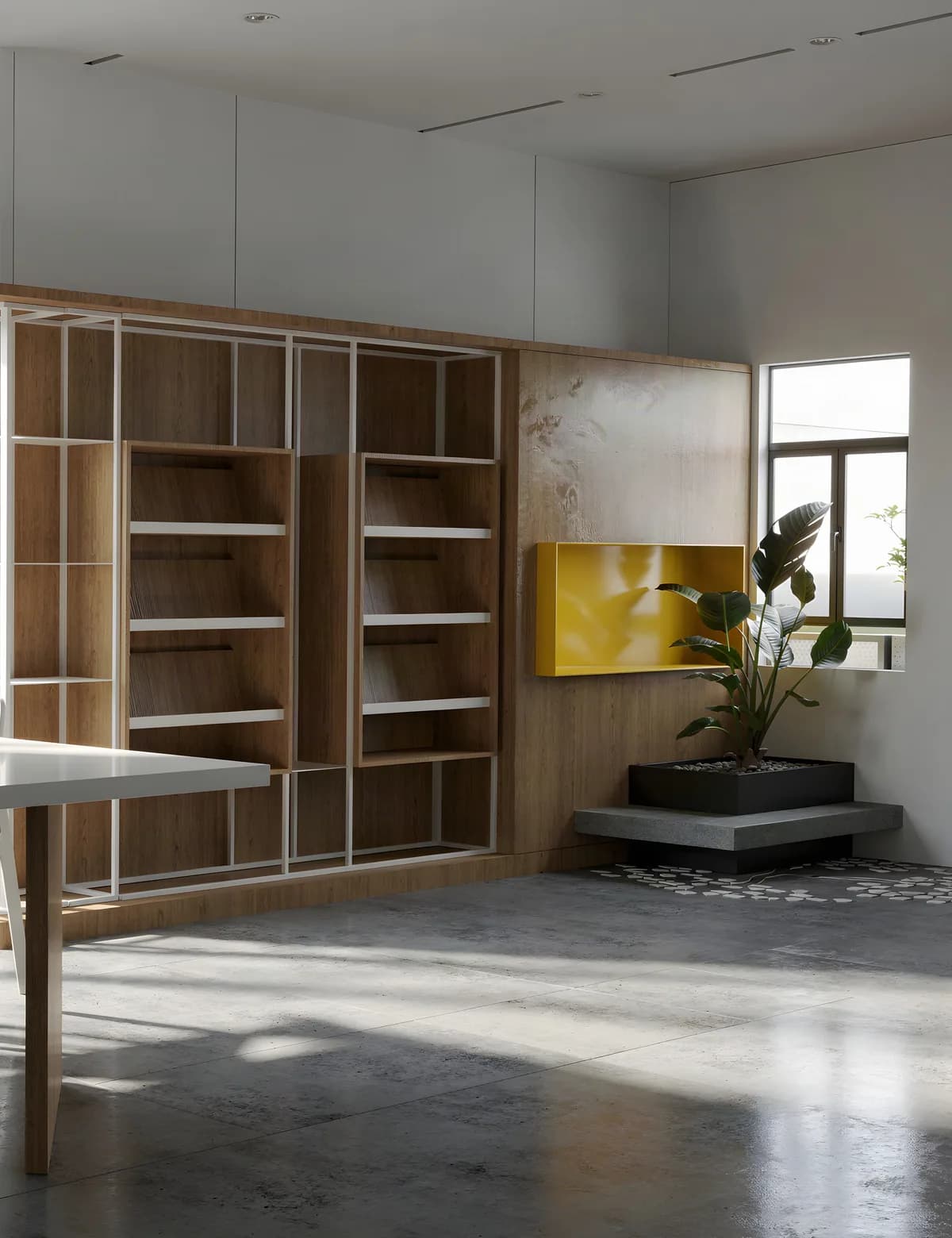
SketchUp AI Render Without a Subscription (2026 Workflow)
SketchUp's built-in AI Render costs 10 credits an image — 15 renders a month on Pro. The browser route is the other one: export a view, render it without a plugin. Credit maths, export settings, prompts, two real cases.
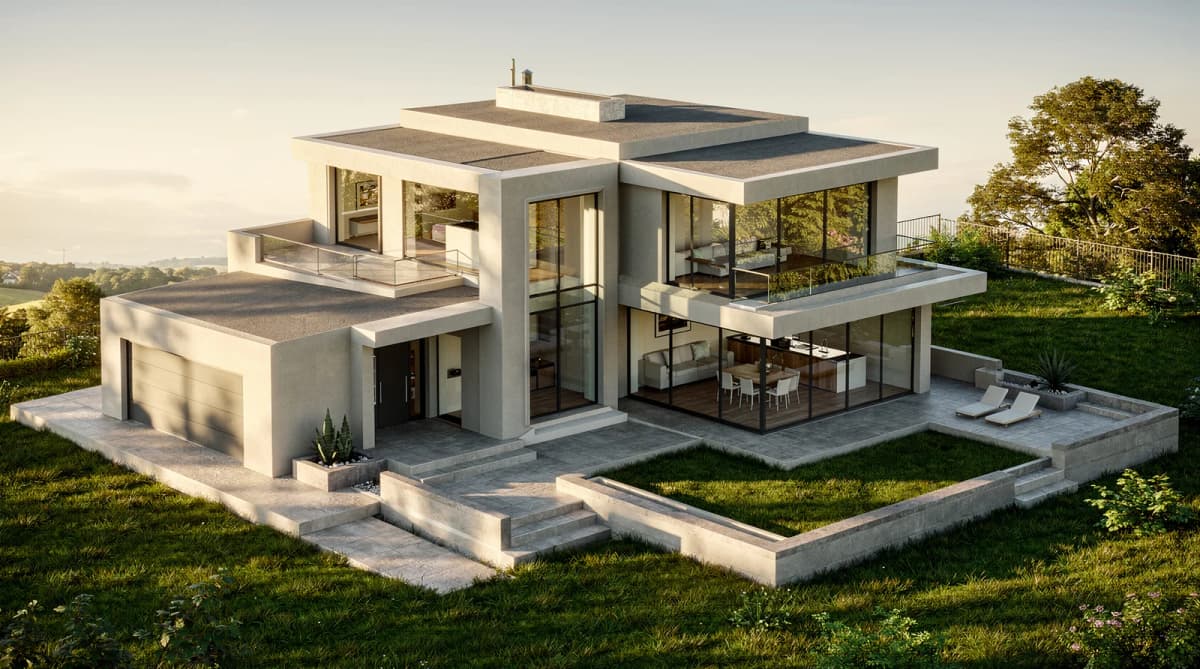
Sketch to Render AI: How Architects Turn Hand Drawings into Photorealistic Renders in 2026
A practical guide to AI sketch-to-render for architects, students, and designers. What it does, how it fits real workflows, and where it still falls short.
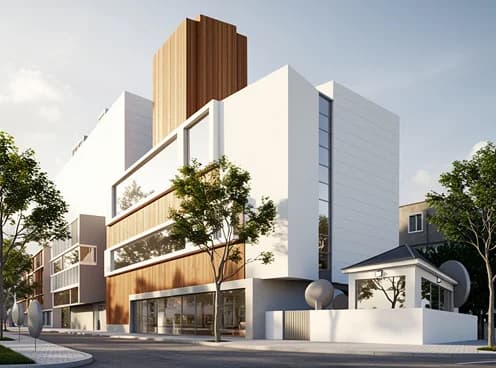
AI Rendering vs V-Ray: Choosing a Concept Workflow
Compare image-based AI concept exploration with a scene-based V-Ray workflow, including revision control, review effort, and total task cost.
Get the next product and workflow notes in your inbox
Newsletter
Join the community
Subscribe to our newsletter for the latest news and updates