Sketch to Render AI Workflow for Architects.Hand sketch · SketchUp export · CAD line → photorealistic render in 30 seconds.
The workflow architects use in 2026 for concept and client iteration. Traditional V-Ray passes take 8-40 hours per render; AI compresses that to under a minute at the cost of physically-accurate light — a tradeoff that wins in the design-exploration block.
Free to try · No credit card required
Who turns sketches into renders.
Concept and client-iteration phases. Replace 8-40h V-Ray passes with 30-second AI renders during the design exploration block. Final hero shots still finish in V-Ray.
Portfolio renders + competition boards without three months of V-Ray training. Focus on the design problem; let AI rendering handle the visualization curve.
Pre-sales and feasibility. Turn a massing sketch or SketchUp study into a presentation render for stakeholders before committing to a full visualization budget.
Concept boards from rough plan sketches. Render a proposed space from a quick line drawing to align with clients before detailed modeling.
Renovation visualization. Sketch a proposed change over a facade photo and see the result in context before committing to the build.
Sketch in. Photorealistic render out.
Prepare your input
Scan a hand sketch at 200-300 dpi, or export a SketchUp / Rhino scene as a hidden-line PNG. Three things matter: clear linework, consistent perspective, light shading (heavy color fills bias the AI away from the prompt).
Choose style + program
The same line drawing renders wildly differently as "Scandinavian residential villa, golden hour" vs "Brutalist commercial office, overcast midday". Pick a style preset, a building program, a time of day, and a material accent — or start from a template.
Generate (~30 seconds)
Drop the image into the generator, paste the prompt, hit generate. The AI structure layer preserves your geometry; the diffusion model fills in materials, lighting, vegetation, and atmosphere.
Iterate — lock a baseline, vary one variable
The first render is rarely the final one. Lock a render you like as the baseline, then swap one variable at a time: material, time of day, vegetation, secondary palette. Two or three iterations get you to a client-ready concept render.
Two sketches. Two renders. Real outputs.
Same generator, same workflow — different style prompts. Each pair below is an actual sketch input next to its AI render.
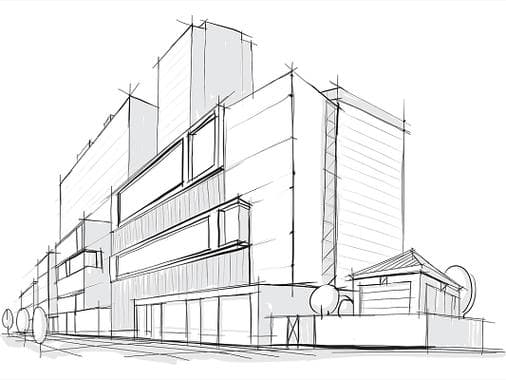
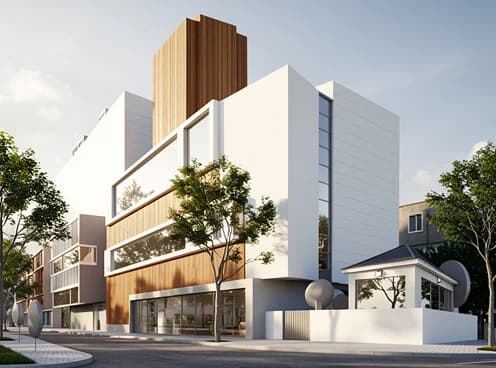
Sketch → AI render
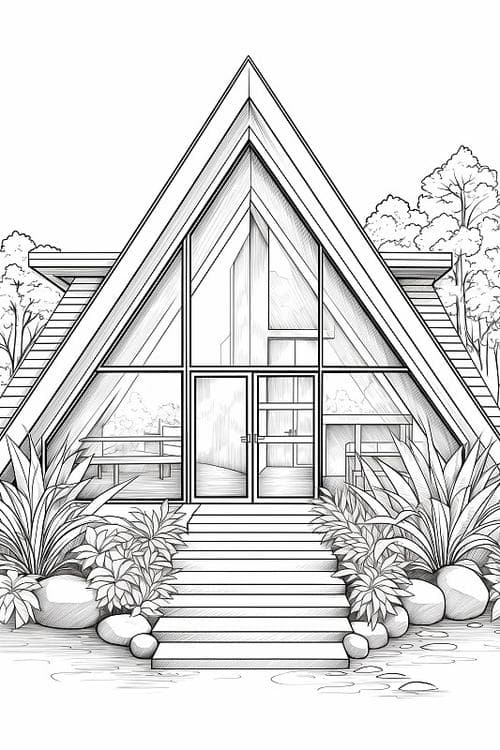
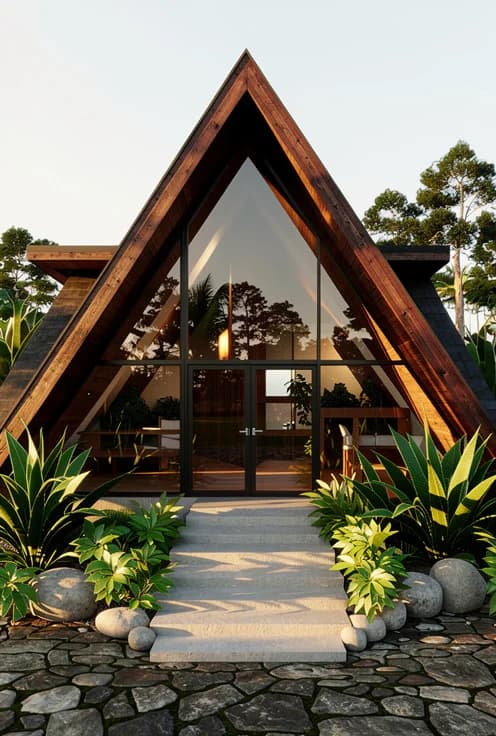
Sketch → AI render
What the sketch-to-render workflow handles.
Hidden-line SketchUp exports, Rhino viewport captures, Revit elevations, or AutoCAD line drawings all work as input — the AI reads the exported image, not the native file.
Your linework anchors camera angle, composition, and massing while the AI fills materials, lighting, and atmosphere. It references the drawing; it does not lock CAD geometry.
Lock a baseline render, then swap one variable at a time — time of day, material accent, vegetation — to converge on a client-ready concept in a few passes.
Works from perspective sketches and from flat elevations. Two-point perspective renders most predictably; clean elevations turn into massing studies.
Get a better render in one pass.
- Use clear linework — pencil on white paper, or hidden-line SketchUp export. Heavy color fills fight the prompt.
- Keep perspective consistent — AI propagates broken vanishing points into the render with photorealistic textures, making the error harder to spot.
- Light shading is fine; full color is not. The AI structure layer needs tonal contrast on edges, not painted surfaces.
- For SketchUp exports, keep edges and openings clearly readable at actual size within the uploader limit. For scans, use ≥200 dpi.
- Shoot scanned sketches square-to-page with diffuse light — angled phone photos introduce a perspective tilt that propagates.
Where AI rendering ends.
- Complex parametric facades (curved panels, dense double-skin) render less reliably than orthogonal massing.
- Specific branded materials ("Mutina Pico tile, matte cream") render as a plausible family member, not the exact SKU.
- Interior light consistency in deep-space scenes — long corridors, multi-room cuts — sometimes shows inconsistent shadow behavior.
- Perspective errors in the input propagate to the output. AI does not correct geometry; it inherits it.
- Not for final hero shots when the deliverable requires physically accurate light or material accuracy. V-Ray / Corona still win that block.
Sketch to render, answered.
How do I convert a sketch to a render?
Scan or photograph a clean line sketch, choose a style and building program, drop the image into the generator with a prompt, then iterate one variable at a time. A render takes about 30 seconds.
Can I turn a SketchUp model into a render?
Yes. Export your SketchUp view as a hidden-line or shaded image (File › Export › 2D Graphic) and render it — no plugin needed. See the dedicated SketchUp AI Render guide for export settings.
Does it work with Revit or floor plan drawings?
It works from Revit elevations and line exports, and from floor plan line drawings, the same way — you upload an exported image rather than the native file. Perspective views render more photorealistically than flat plans.
Can I convert a pencil or hand-drawn sketch to a 3D render?
Yes. A clear pencil or pen sketch on white paper renders well. Light shading is fine; full color fills fight the prompt. Scan at ≥200 dpi square-to-page for the cleanest linework.
Will it keep my sketch geometry?
It uses your sketch as a reference for composition and massing, but it does not lock exact geometry. Perspective errors and unclear edges can carry into the render.
Is it free to try?
Yes — the free tier runs in the browser with no credit card required, so you can render a sketch before deciding anything.
How realistic is the render?
Presentation-ready for concept and client iteration — convincing materials, lighting, and atmosphere. For physically accurate final hero images, a render engine like V-Ray or Enscape still wins.
Start from a template, not a blank prompt.
Templates bundle style + program + lighting + material accent into a one-click starting point. Pick the closest match, then iterate.
Related guides.
Export a SketchUp view and turn it into a photorealistic render — export settings, the 4-step workflow, and when to use AI vs V-Ray / Enscape / D5.
Read guide →How the architecture generator turns reference images and prompts into concept renders across building types and styles.
Read guide →Run your own sketch through the workflow.
Free tier, no credit card required, runs in the browser. Upload a sketch and see what happens in 30 seconds.