SketchUp AI Render.Export your SketchUp view → a photorealistic AI render in ~30 seconds.
The fast path for concept and client iteration: no V-Ray license needed for the concept block, no render farm, no plugin. Export your view, drop it in, and explore photorealistic looks in under a minute — then finish the hero shot in your render engine when you need delivery-grade light.
Free to try · No credit card required
Three audiences, one SketchUp workflow.
Concept and client-iteration phases. Replace 8-40h V-Ray passes with 30-second AI renders during design exploration. Final hero shots still finish in V-Ray or Enscape.
You already model fast in SketchUp but rendering is the bottleneck. Skip the render-engine setup for concept work — export the view, get a photorealistic look in under a minute.
Portfolio renders and competition boards without three months of V-Ray training. Focus on the design problem; let AI rendering handle the visualization curve.
SketchUp export in. Photorealistic render out.
Export your SketchUp view
In SketchUp, File › Export › 2D Graphic and save a hidden-line or shaded PNG with edges and openings clearly readable at actual size. Clean linework reads best — heavy textures and full color fills fight the prompt. A flat screenshot of the viewport works too.
Choose style + program
The same SketchUp model renders wildly differently as "Scandinavian residential villa, golden hour" vs "Brutalist commercial office, overcast midday". Pick a style preset, a building program, a time of day, and a material accent — or start from a template.
Generate (~30 seconds)
Drop the exported view into the generator, paste the prompt, hit generate. The exported SketchUp view anchors the camera angle, composition, and massing; AI adds materials, lighting, vegetation, and atmosphere. Small details may still be reinterpreted — it references your view, it does not lock CAD geometry.
Iterate — lock a baseline, vary one variable
The first render is rarely the final one. Lock a render you like as the baseline, then swap one variable at a time: material, time of day, vegetation, secondary palette. Two or three iterations get you to a client-ready concept render.
Four model views. Four renders. Real outputs.
Same generator, same workflow — different style prompts. Each pair below is a model view next to the render it produced.
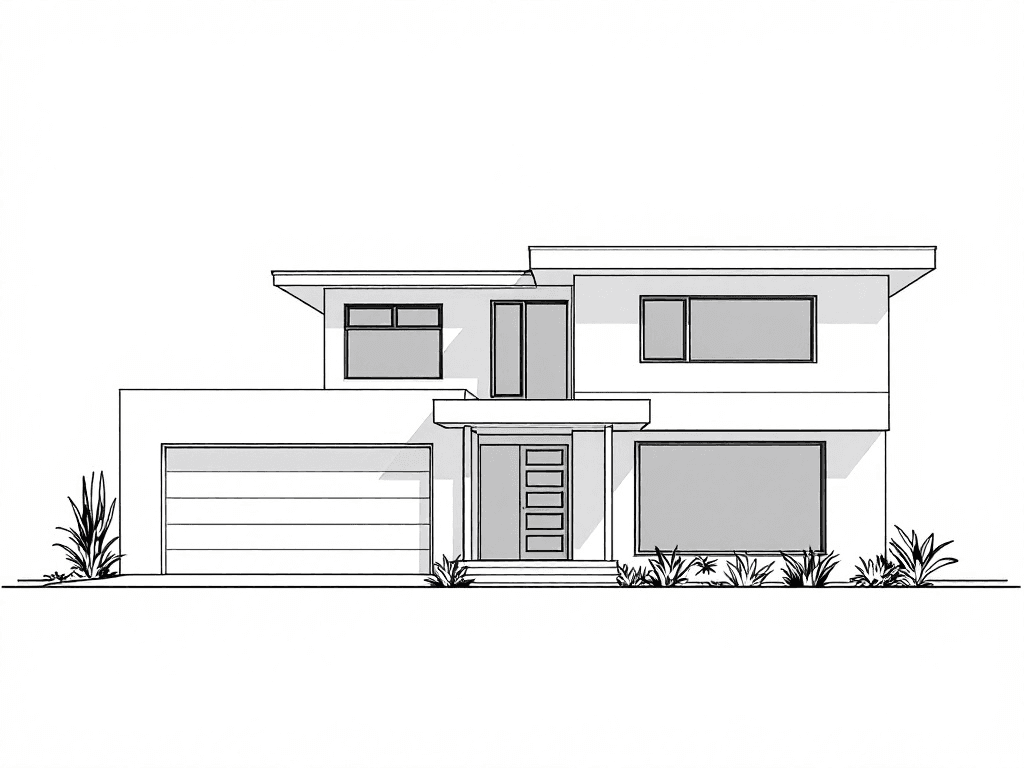
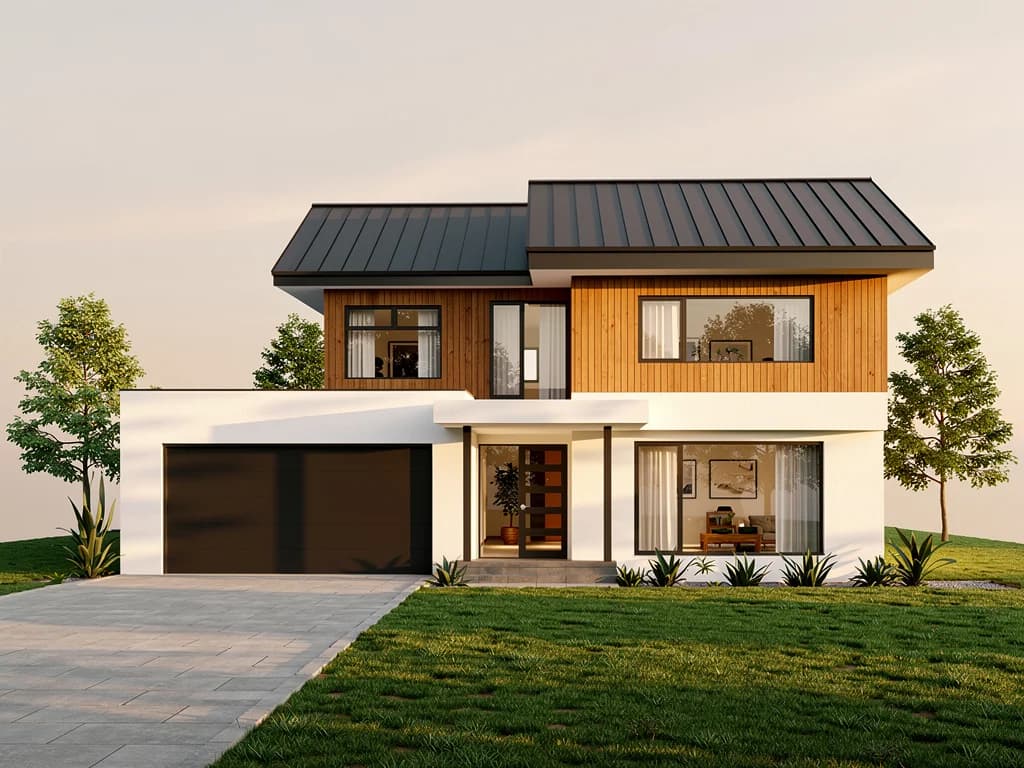
Model view → AI render
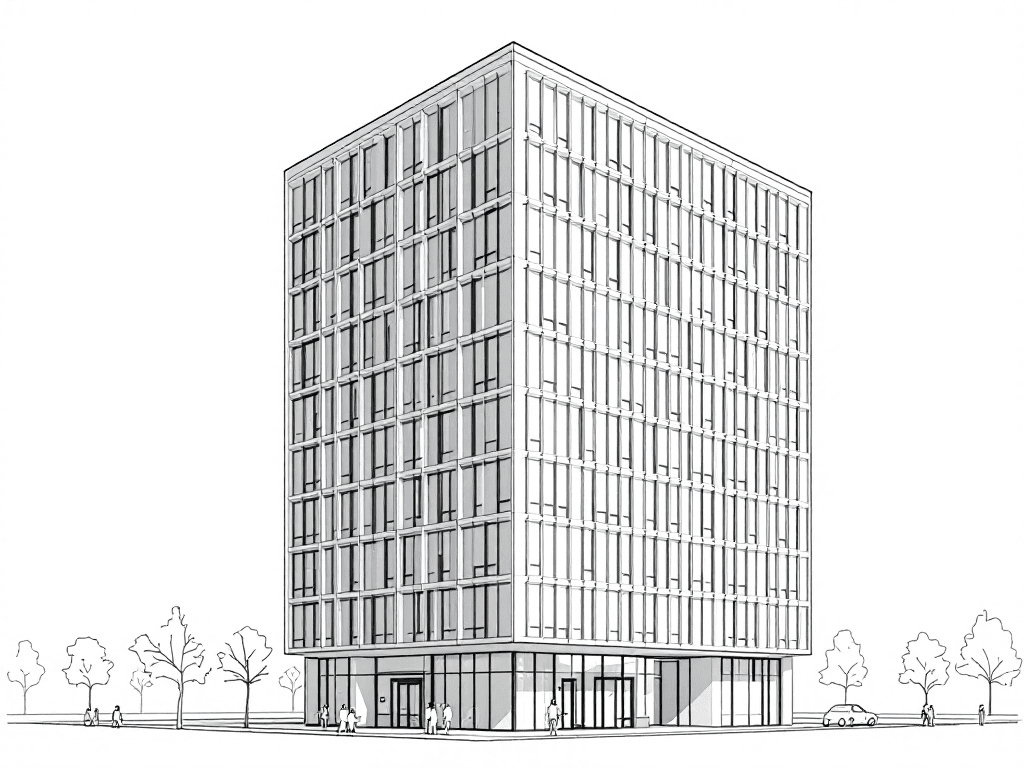
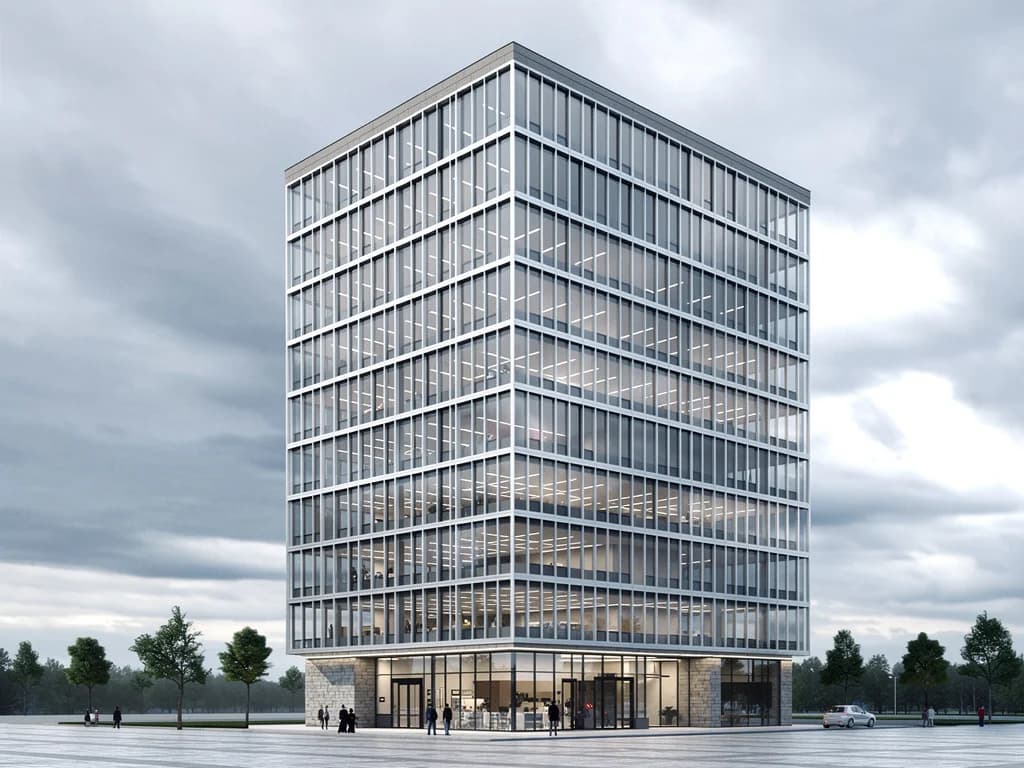
Model view → AI render
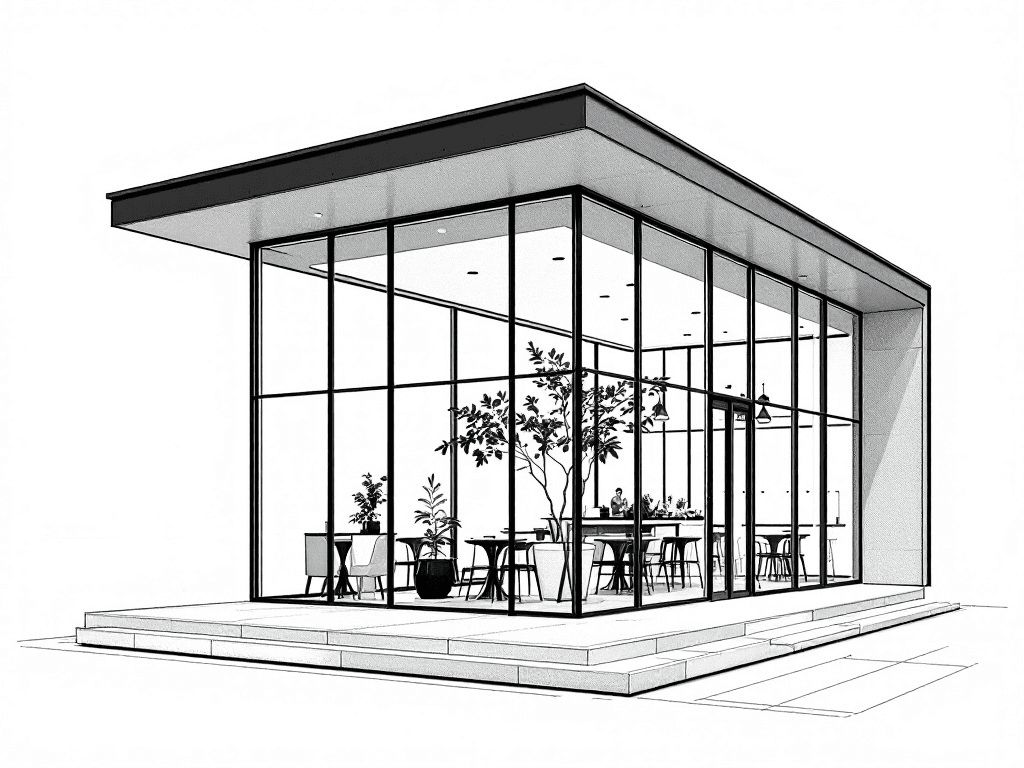
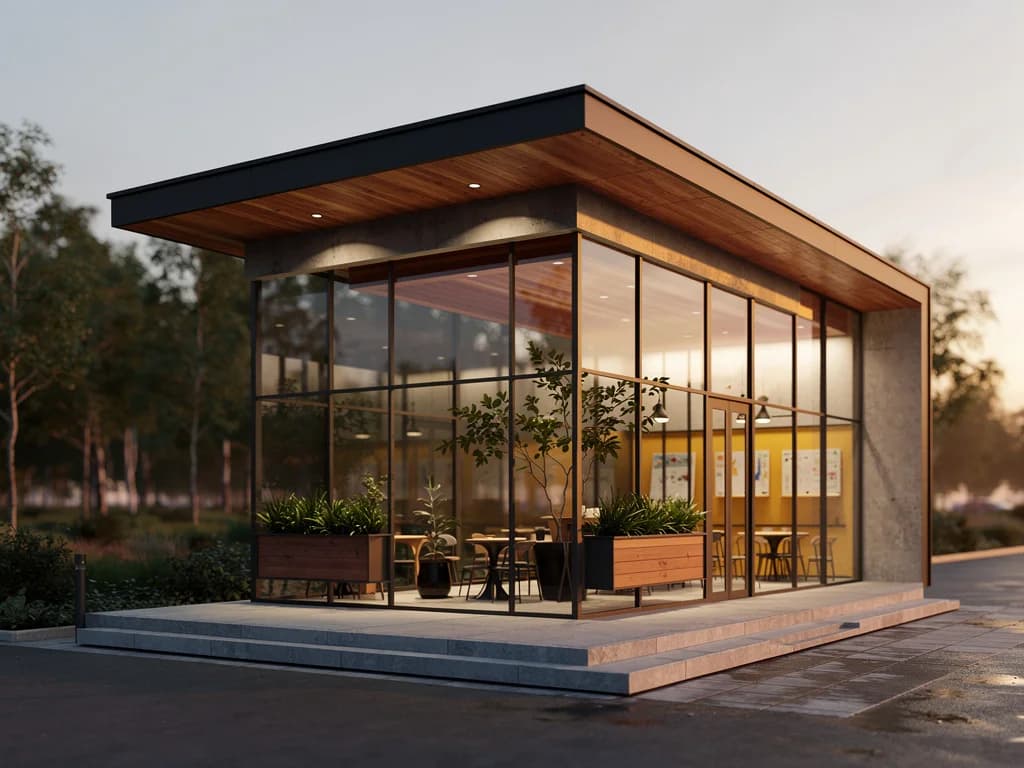
Model view → AI render
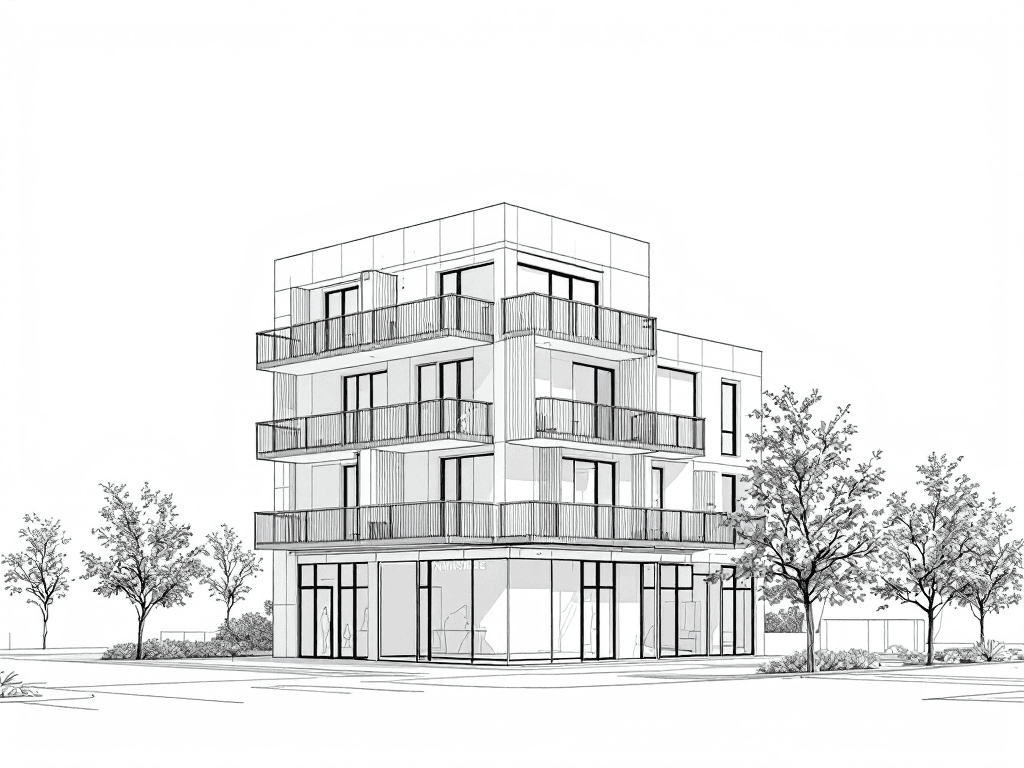
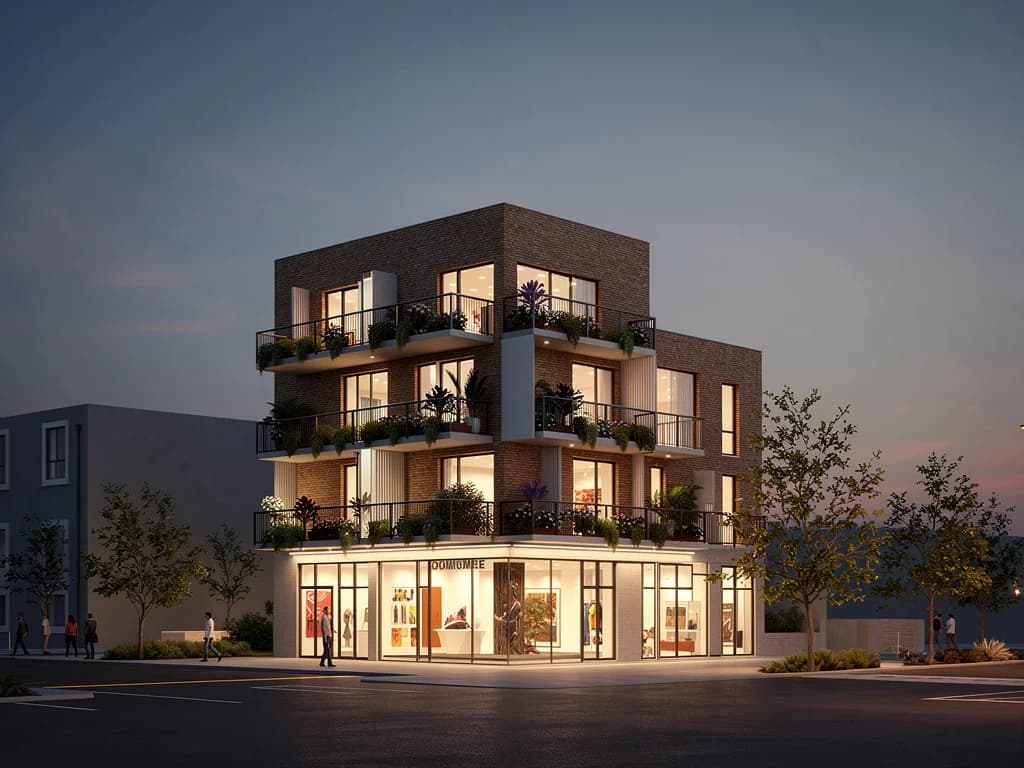
Model view → AI render
Get a better render in one pass.
- Export hidden-line or lightly shaded — File › Export › 2D Graphic. Heavy textures and full color fills bias the AI away from your prompt.
- Keep perspective consistent. Two-point perspective and a clean eye-level camera render more predictably than extreme wide-angle views.
- Export at a size where edges and openings are clearly readable, within the uploader limit. Keep the composition you want.
- Keep edges on and profiles off for a clean outline. Hide section cuts; turn shadows off when exploring new lighting.
- A flat viewport screenshot is fine — you do not need a render engine. The AI only needs a clear view of the geometry.
Where AI rendering ends.
- It references your exported view; it does not lock CAD geometry. Perspective mistakes and unclear edges can carry into the render.
- Complex parametric facades (curved panels, dense double-skin) render less reliably than orthogonal massing.
- Specific branded materials ("Mutina Pico tile, matte cream") render as a plausible family member, not the exact SKU.
- It is not a SketchUp plugin and does not read .skp files — you upload an exported image, not the model.
- Not for final hero shots that need physically accurate light or material accuracy. V-Ray / Enscape / D5 still win that block.
When to use AI, when to use V-Ray, Enscape, or D5.
They are not rivals — they fit different stages. Most SketchUp users already run a render engine; AI sits earlier in the process, where speed beats physical accuracy.
- Concept stage and early massing
- Fast client iteration — many looks in minutes
- Style and material exploration
- Boards and quick presentation visuals
- Final hero images
- Physically accurate lighting
- Exact material and texture precision
- Delivery-grade renders for the client package
SketchUp AI rendering, answered.
Is there an AI render plugin for SketchUp?
You do not need to install a plugin. Export your SketchUp view as an image (File › Export › 2D Graphic) and render it in the browser — nothing to install in SketchUp itself.
How do I AI render a SketchUp model?
Four steps: export your view as a hidden-line or shaded PNG, pick a style and building program, drop the image into the generator with a prompt, then iterate one variable at a time until the look is right. It takes about 30 seconds per render.
Can I render a SketchUp model online for free?
Yes. The free tier runs in the browser with no credit card required, so you can export a SketchUp view and try a photorealistic AI render before deciding anything.
Do I still need V-Ray or Enscape?
For concept work and client iteration, AI is faster — no license, no render setup. For final hero images that need physically accurate light and exact materials, V-Ray, Enscape, or D5 still win. Most users use AI early and a render engine for the final deliverable.
Does it keep my model's geometry?
It uses your exported view as a reference for camera angle, composition, and massing, but it does not lock CAD geometry. Perspective mistakes and unclear edges can carry into the render.
What export settings give the best render?
Export a hidden-line or lightly shaded view with edges and openings readable at actual size. Keep edges on and profiles off; hide section cuts. Turn shadows off when exploring new lighting, and retain your intended camera framing.
How realistic is the output?
Presentation-ready for concept and client iteration — convincing materials, lighting, and atmosphere. It is not a physically accurate render, so treat it as a concept visual, not a final engineering-grade image.
What about Revit, Rhino, or AutoCAD?
The same workflow applies — export a view as an image and render it. SketchUp, Rhino, Revit, or a hand sketch all work as input because the AI reads the exported image, not the native file.
Is this an official SketchUp product?
No. AI Arch Generator is not affiliated with Trimble or SketchUp. SketchUp is referenced only to describe the export workflow.
Keep exploring the workflow.
Prepare an image reference, explore a visual direction, and check generated results against your source view.
Read more →Compare revision control, preparation, review effort, and the total cost of an accepted result.
Read more →The broader workflow — hand sketches, SketchUp exports, and CAD line drawings into photorealistic renders. Tips, limits, and the 4-step process.
Read more →How the architecture generator turns reference images and prompts into concept renders across building types and styles.
Read more →Render your own SketchUp view.
Free tier, no credit card required, runs in the browser. Upload a SketchUp export and see a photorealistic concept render in 30 seconds.