
Materials you can adjust
Replace a material image with your own, adjust its crop and give it a useful label.
MOOD BOARD STUDIO
Turn an interior image into an editable material and color board.
FROM PHOTO TO PALETTE
See how a wood headboard, muted green wall and soft bedding become a visual direction for materials and colors.
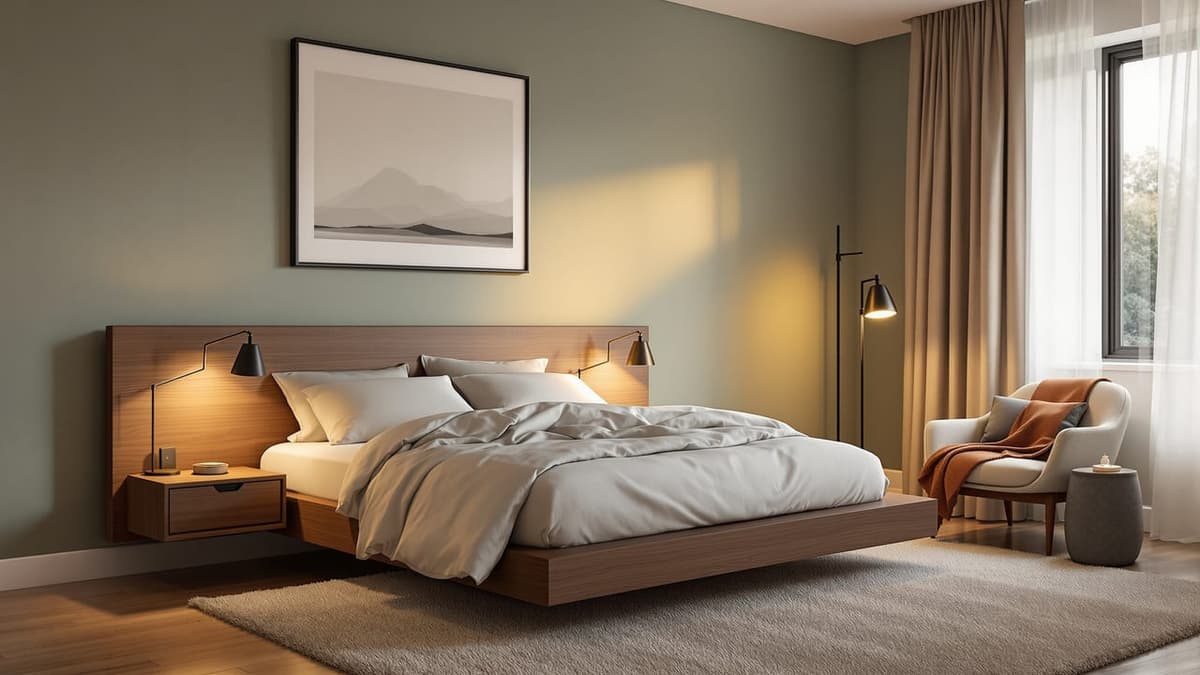
Warm wood, soft fabric and a muted palette bring the concept together. The material images are AI references; labels, crops and colors can be adjusted in your own board.
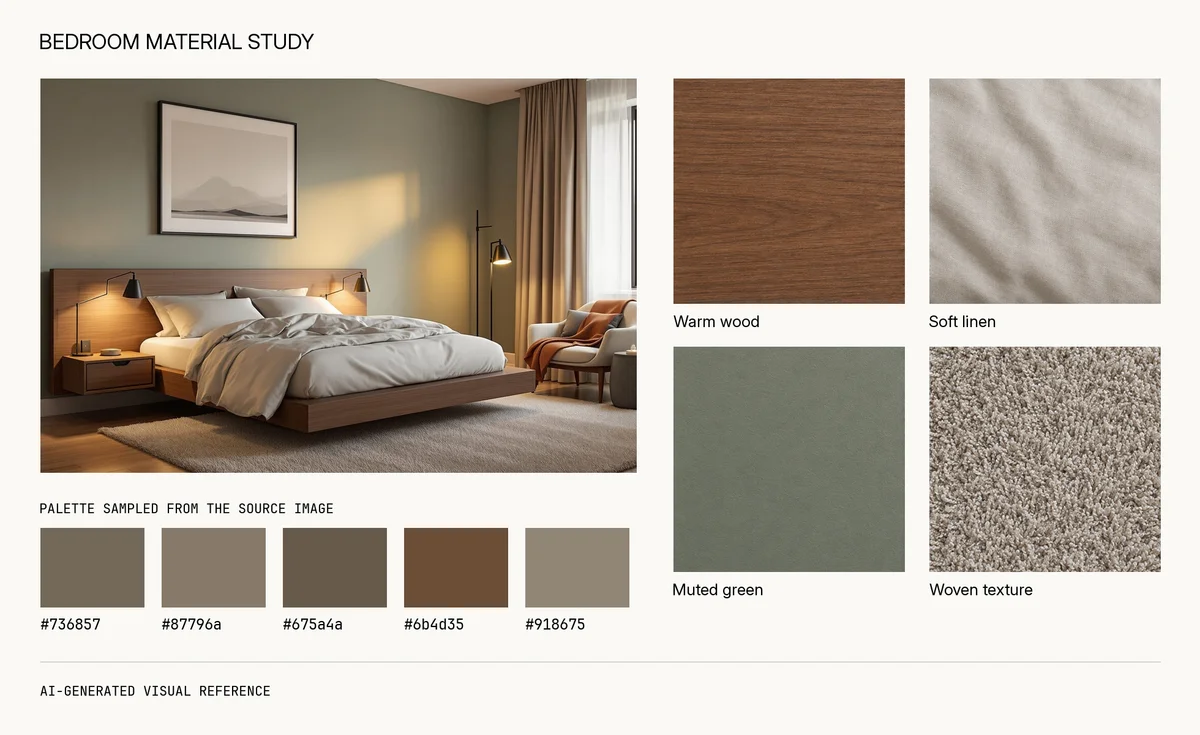
A sample material and color direction to explore and refine.
This example pairs our own AI-generated bedroom image with material references from an earlier AI test, assembled in the current board layout.
A SIMPLE WORKFLOW
Upload a JPG, PNG or WebP, or choose one of your completed Interior results. Your original image stays unchanged.
Review four AI-generated material references and five colors. Edit labels, crops and colors, replace a material image, or restore the original board.
Save your edits and download a PNG. Editing, saving and downloading do not use additional generation allowances.
MAKE IT YOURS
Replace a material image with your own, adjust its crop and give it a useful label.
Change individual colors to explore a warmer, cooler or more restrained scheme.
Edit the title, undo your last change and return to a saved board before exporting a PNG.
BUILT FOR INTERIOR IDEAS
Bring materials and colors together before moving on to detailed specifications.
Organize the look you want to discuss with a designer, partner or contractor.
Place the source image beside the material direction so the conversation stays grounded in the room.
GOOD TO KNOW
AI material references may differ from the photographed surfaces. They do not identify brands, products or exact finishes. Check real samples before making purchasing decisions.
A mood board brings a room reference, material ideas and a color palette together to communicate a design direction. It helps discuss the look and feel before choosing real products.
Create an Interior result first, then select it here. Mood Board uses one interior image at a time.
Yes. Rename material labels, replace material images, adjust crops, change the title and edit each color. You can undo your last edit or restore the initial board.
Each new board uses one separate Mood Board generation. Editing, saving and downloading do not use additional generations. Your Interior allowance is separate.
Sign in to reopen a board from Your mood boards. Wait for the Saved status before leaving. If a save fails, keep the page open and resolve the message before reloading.
A failed task returns its reserved Mood Board allowance. Retrying starts a new task only when you choose to generate again.
Free exports include a board watermark. Paid plan exports do not. An HD Pass does not add Mood Board generations or remove the board watermark.
Start with one room image. Bring its materials and colors into focus.
Create your mood board