
VIRTUAL STAGING

Explore furnishing directions from a vacant room photo, then review the result against the original.

Start with an empty-room photo, explore furniture styles, and check the architecture and perspective before using a result in a listing.

REAL PHOTO IN

Start from the empty room photo you already have.

upload first

Use the uploaded room photo as the reference when checking the generated furnishings, room layout, and perspective.

LISTING VARIANTS

Compare multiple buyer-facing directions from the same room.

style loop

Modern, Scandinavian, premium, or family-friendly passes can all come from one upload when a team wants to choose the strongest listing angle.

REAL INPUT
A real room photo comes first

Start with a photo of an empty room and explore furnishing options.

REVIEW THE ROOM
Check the architecture against the original

Compare the output with the original photo and check walls, windows, flooring, and perspective.

STYLE OPTIONS
Compare several furnishing styles

One upload can branch into multiple furnishing directions before the team picks a winner.

STAGING WORKFLOW

A listing-production tool, not a generic image generator.

Upload a room photo, choose a furnishing direction, and compare the result before using it in a listing.

STEP 01

Upload the empty room photo

Start from a clear room photo with visible walls, floor, ceiling, and windows that you can compare with the generated result.

STEP 02

Choose room type and staging style

Set the room category, pick the furnishing direction, and add a short buyer-facing prompt when you want to steer decor or mood.

STEP 03

Generate and compare the furnishing pass

The staging model runs as a single-step image edit, then the workspace shows the original photo against the staged result for fast review.

STEP 04 · BETA

Swap any sofa, bed, or dining table style

Try a different style for a furniture piece, then check the result against the original image for unintended changes.

Upload validationSingle-step pipelineBefore / after reviewFurniture swap (Beta)Advanced keywords
BEFORE / AFTER READY

See the original room against the staged result side-by-side.

Compare both images to check the furnishing choices and identify any unintended changes to the room.

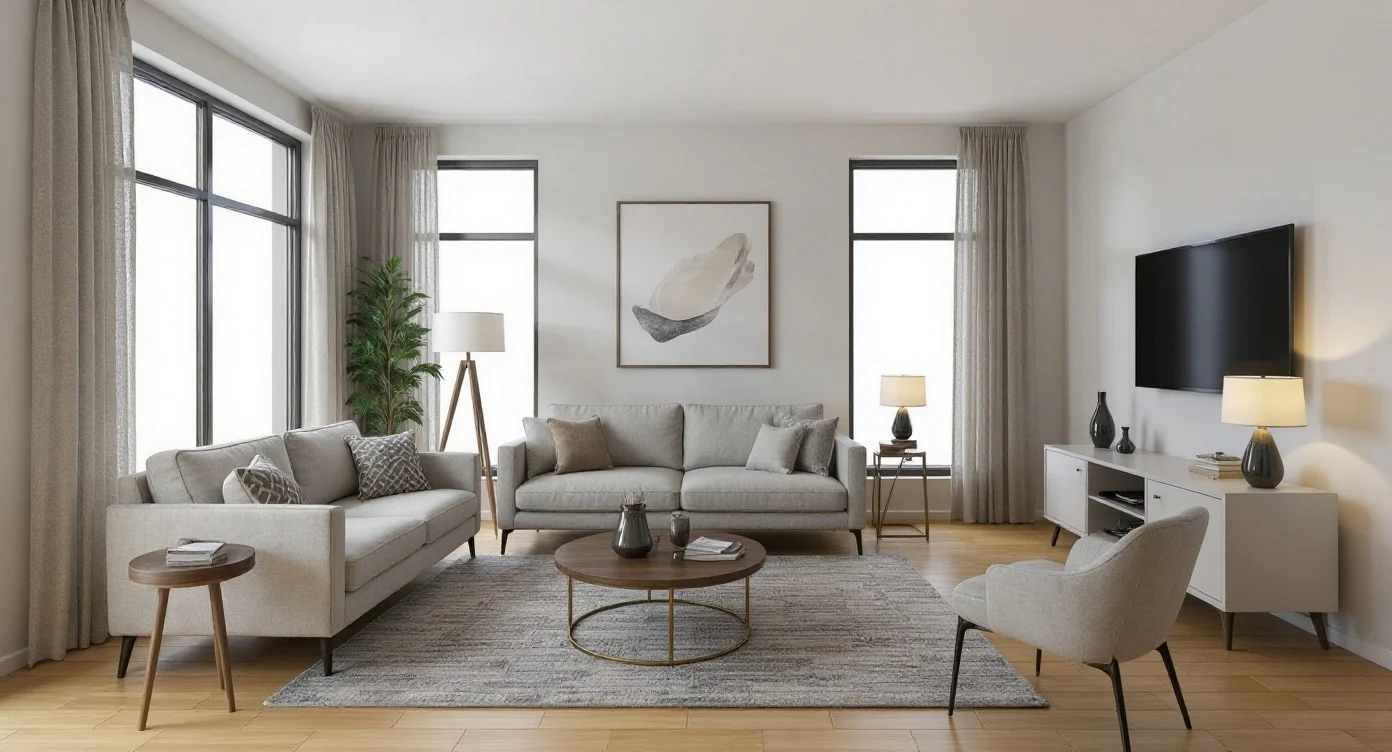
Original empty roomRoom with virtual staging applied
Original room
Staged result
Before / After

Compare the staged result with the original photo. Check the room structure and perspective before using it in a listing.

WHAT TO CHECK

Check the room against the original photo.

Check walls, windows, flooring, ceiling lines, and room geometry for unintended changes.
Compare camera angle and perspective with the original before accepting the result.
If the result misrepresents the property, revise or discard it before publication.
WHAT CHANGES

Furniture, decor, and buyer-facing atmosphere become the editable layer.

Furniture density, decor language, and staging warmth can be steered through room type, style, and short prompt notes.
The best use case is comparison: calmer minimal staging, warmer family staging, or a more premium editorial version of the same room.
Use the before / after view to compare furnishing choices, then try another style if needed.
LISTING DIRECTIONS

Preview every staging style before committing to one.

Explore the furnishing directions below, then check any generated result against your room photo before using it in a listing.
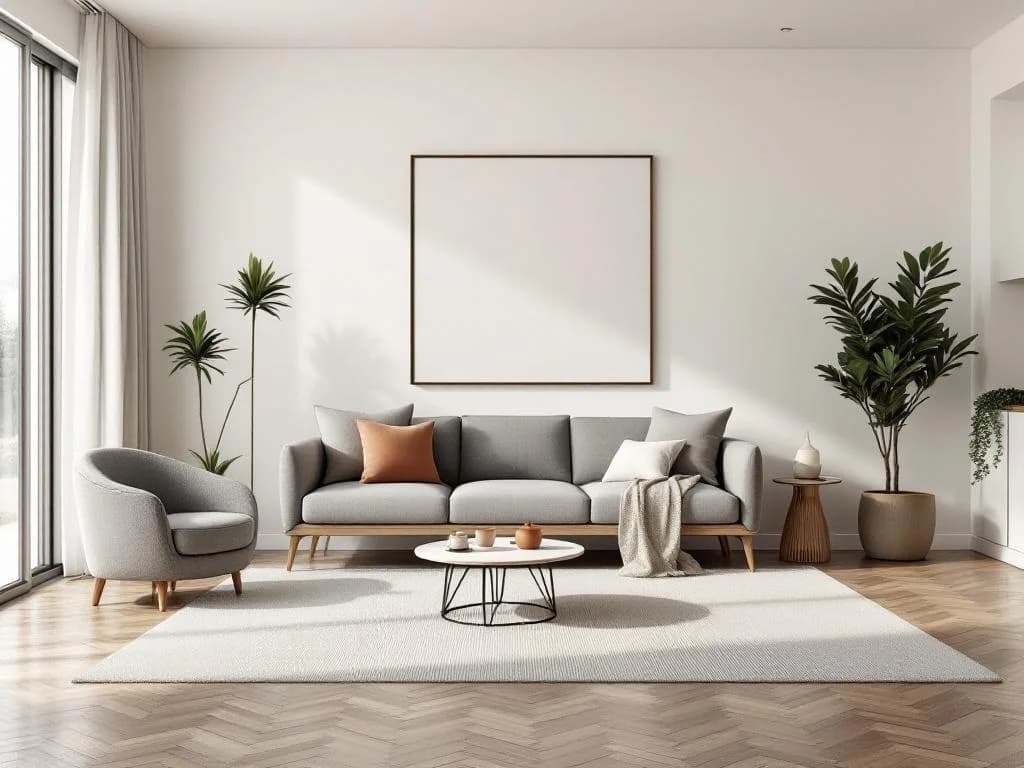
Calm family-living setup
Living RoomModern

Calm family-living setup

Neutral seating, warm daylight, listing-friendly balance

Sample prompt direction

Stage this empty living room with modern seating, a soft neutral palette, and warm evening accents.
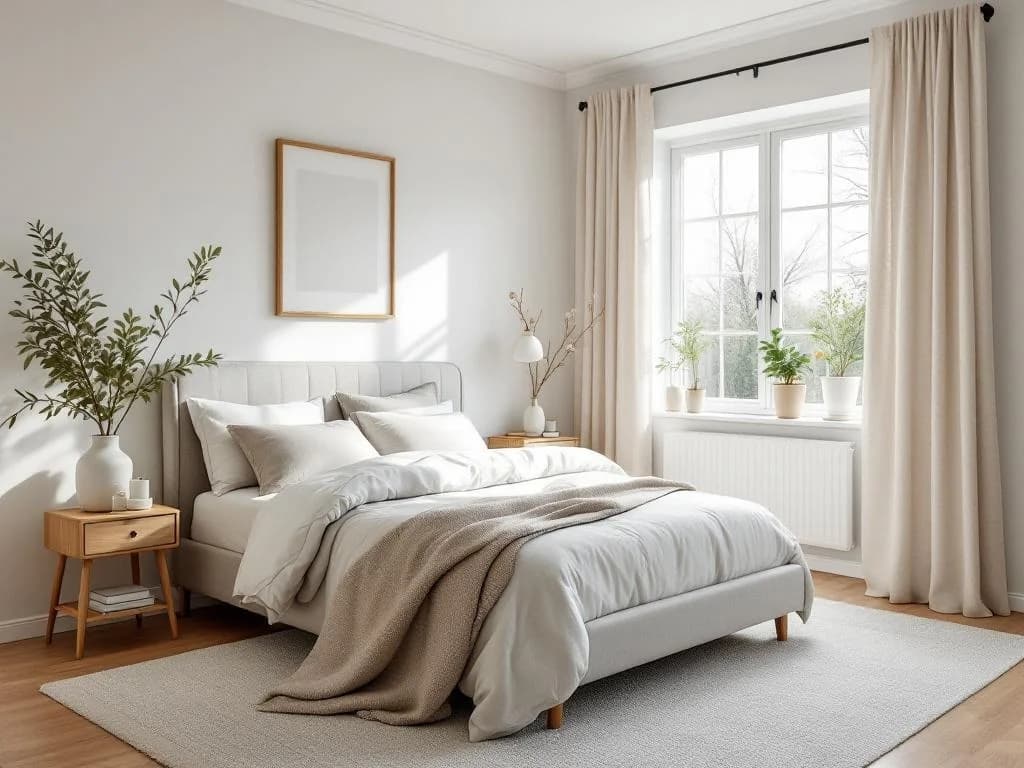
Quiet bedroom refresh
BedroomScandinavian

Quiet bedroom refresh

Clean bed styling, light woods, soft natural light

Sample prompt direction

Stage this bedroom with a calm Scandinavian palette, linen bedding, and clean natural light.
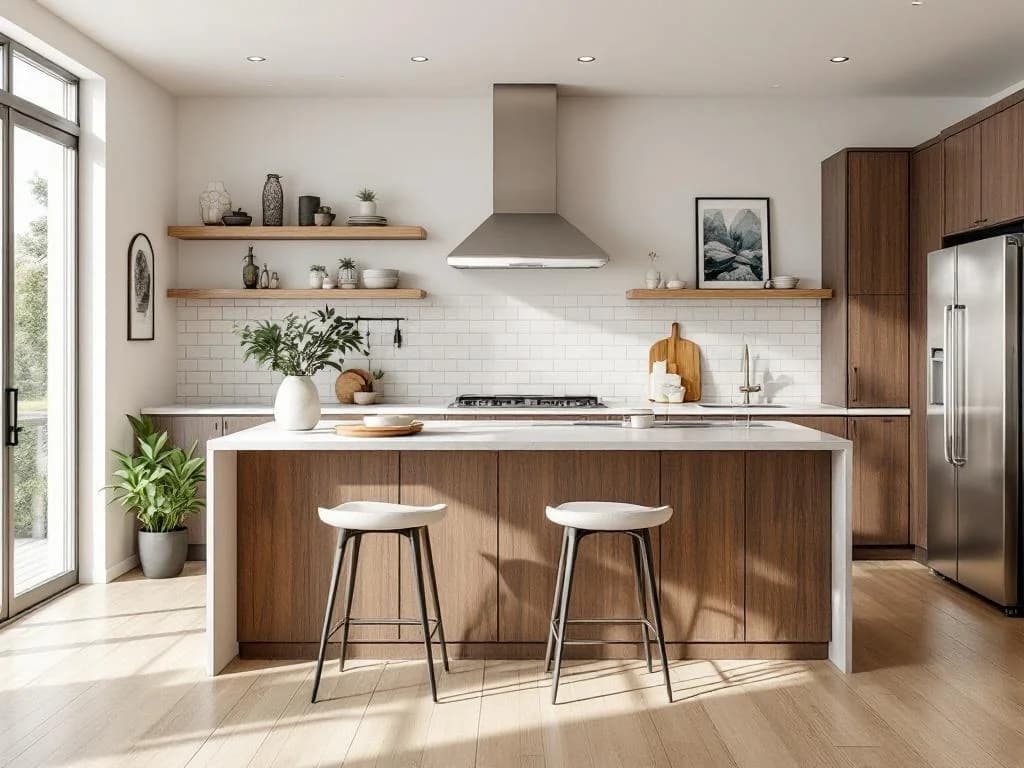
Open kitchen listing pass
KitchenContemporary

Open kitchen listing pass

Simple stools, polished counters, balanced daylight

Sample prompt direction

Furnish this kitchen with contemporary stools, layered decor, and balanced daylight for listing photos.
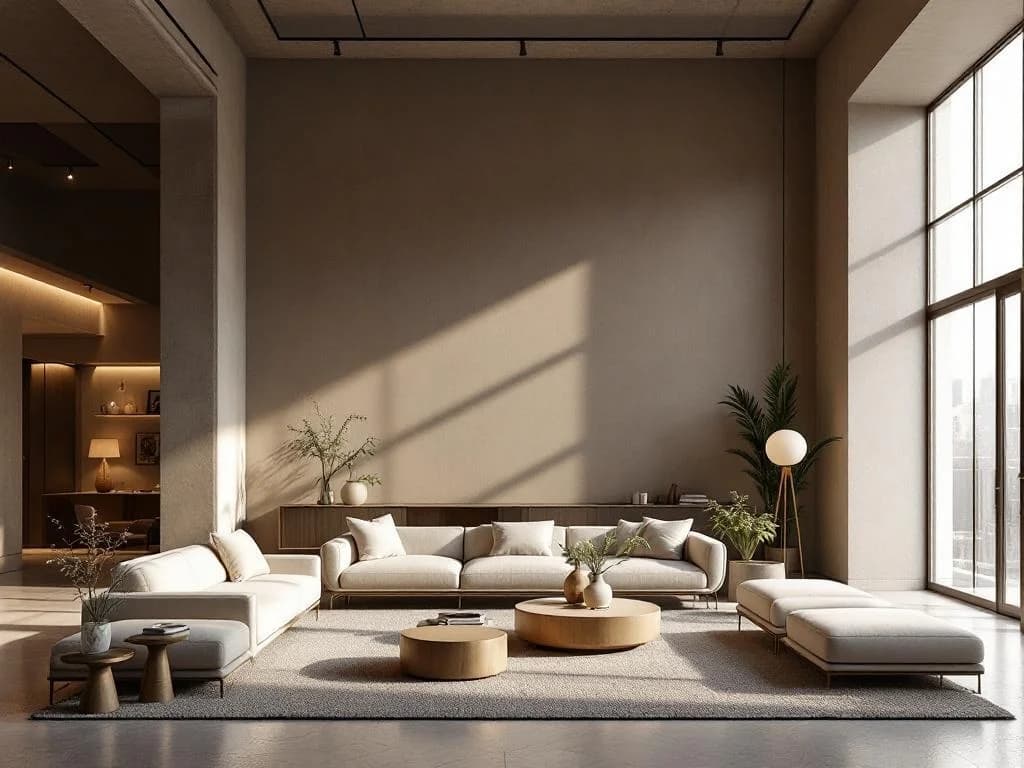
Premium loft staging
Living Room / LoftLuxury

Premium loft staging

Editorial furniture scale, upscale materials, premium mood

Sample prompt direction

Convert this empty loft into a luxury lounge with sculpted furniture and a premium editorial mood.

WHAT IS IT

AI Virtual Staging Software for Empty Rooms

AI virtual staging software turns an empty-room photo into a furnished concept in minutes. Upload a photo, choose a furniture style, and review how the generated furniture and decor fit the visible room. The workflow is designed to preserve the source architecture and camera view, but every result should be checked against the original.

Compared with physical staging, an AI workflow can reduce the time and expense associated with purchasing or renting furniture, transport, setup, and removal. Plan prices and included usage are shown on the pricing page.

HOW TO USE

Explore Multiple Staging Styles

Choose from the furniture and decor styles currently available in the staging controls, including:

Modern
Clean-lined furniture, contemporary decor, neutral tones
Scandinavian
Light wood furniture, minimal decor, airy feel
Industrial
Metal and wood pieces, urban loft aesthetic
Minimalist
Essential pieces only, clean uncluttered space
Traditional
Classic wood furniture, warm and familiar styling
Luxury
Premium designer pieces, high-end materials and finishes
Coastal
Light colors, natural textures, beach-inspired decor
Farmhouse
Rustic wood, vintage accents, cozy country feel
American Classic
Comfortable upholstery, rich wood, inviting warmth
Chinese Traditional
Rosewood furniture, silk cushions, carved details
European Classic
Elegant upholstery, ornate details, marble accents
Japanese Zen
Low-profile furniture, natural materials, shoji screens
Mediterranean
Wrought iron, terracotta accents, warm earth tones
Mid-Century Modern
Retro-inspired furniture, organic shapes, tapered legs
Bohemian
Eclectic textiles, macramé, rich colors, mixed patterns
Art Deco
Geometric patterns, gold accents, velvet upholstery
Contemporary
Current trends, mixed textures, statement pieces
Wabi-Sabi
Imperfect natural materials, handcrafted ceramics, muted tones
STYLES

Explore Furniture Changes (Beta)

Furniture Swap (Beta) lets you request a different sofa, bed, dining table, wardrobe, or chair style from a completed staging. The existing image provides context, but generated edits may also change nearby details, so review each version carefully.

Five furniture categories supported in Beta:

Bed
Nordic oak, American classic, Japanese low-profile, four-poster, French provincial, and more
Sofa
Chesterfield, Scandinavian fabric, Italian leather, industrial frame, oversized American, and more
Wardrobe / Closet
Open-shelf, mirrored, built-in, and freestanding configurations
Dining table
Multiple shapes, materials, and seating sizes
Chair
Upholstered, dining, and accent options

Completed staging versions remain available in the project history. On eligible plans, open a completed staging, choose a supported furniture category, and compare the new version with its parent.

WHO USES IT

Perfect for Real Estate Professionals

Virtual staging can help teams explore and prepare furnishing concepts without moving physical furniture. With this workflow, you can:

  • Stage every room of a listing in minutes, not days
  • Generate multiple style variations to appeal to different buyer demographics
  • Explore a different staging style in minutes when feedback suggests another direction
  • Stage properties before they're even listed, getting marketing materials ready faster

The tool is equally valuable for property managers preparing rental listings, interior designers presenting furnishing concepts, and homeowners visualizing renovation outcomes.

Looking for exterior architectural visualization? Try our AI Architecture Generator. Need to design room interiors from scratch? Our AI Interior Design Generator creates rooms from text descriptions.

See our pricing plans for current Virtual Staging access, usage limits, and output options.

FAQ

Frequently Asked Questions

How much does AI virtual staging cost vs traditional staging?
AI virtual staging avoids the furniture purchasing, transport, setup, and removal involved in physical staging. Your actual cost depends on your current plan; see the pricing page for included usage.
What kind of empty room photo works best?
Use a clear, well-lit, eye-level photo that shows the room boundaries. Avoid extreme lens distortion, heavy blur, or blocked walls and floors, because those details help the model understand the space.
Will the staged photo keep my actual walls / floor / windows?
The workflow is designed to preserve visible walls, floors, windows, doors, and the camera view while adding furniture and decor. Review every result against the source photo before using it.
Can I generate multiple style variations from one upload?
Yes. You can use the same source photo to explore different furniture directions such as Scandinavian, Modern, Mediterranean, or Industrial. Each generation is a separate concept to review.
Should I disclose that a photo is virtually staged?
Disclosure requirements vary by marketplace and location. Check the rules that apply to your listing and label virtually staged imagery when required.
Do I need a paid plan to try it?
Virtual Staging currently requires an eligible paid plan. Current plan limits and output benefits are listed on the pricing page.
Can I change just the sofa style without redoing the whole room?
Furniture Swap (Beta) can request a different bed, sofa, wardrobe, dining table, or chair style while using the staged image as context. AI edits can affect nearby details, so compare the result with the previous version.

Explore a furnished direction in minutes.

Upload an empty-room photo, choose a style, and review the generated staging concept.