
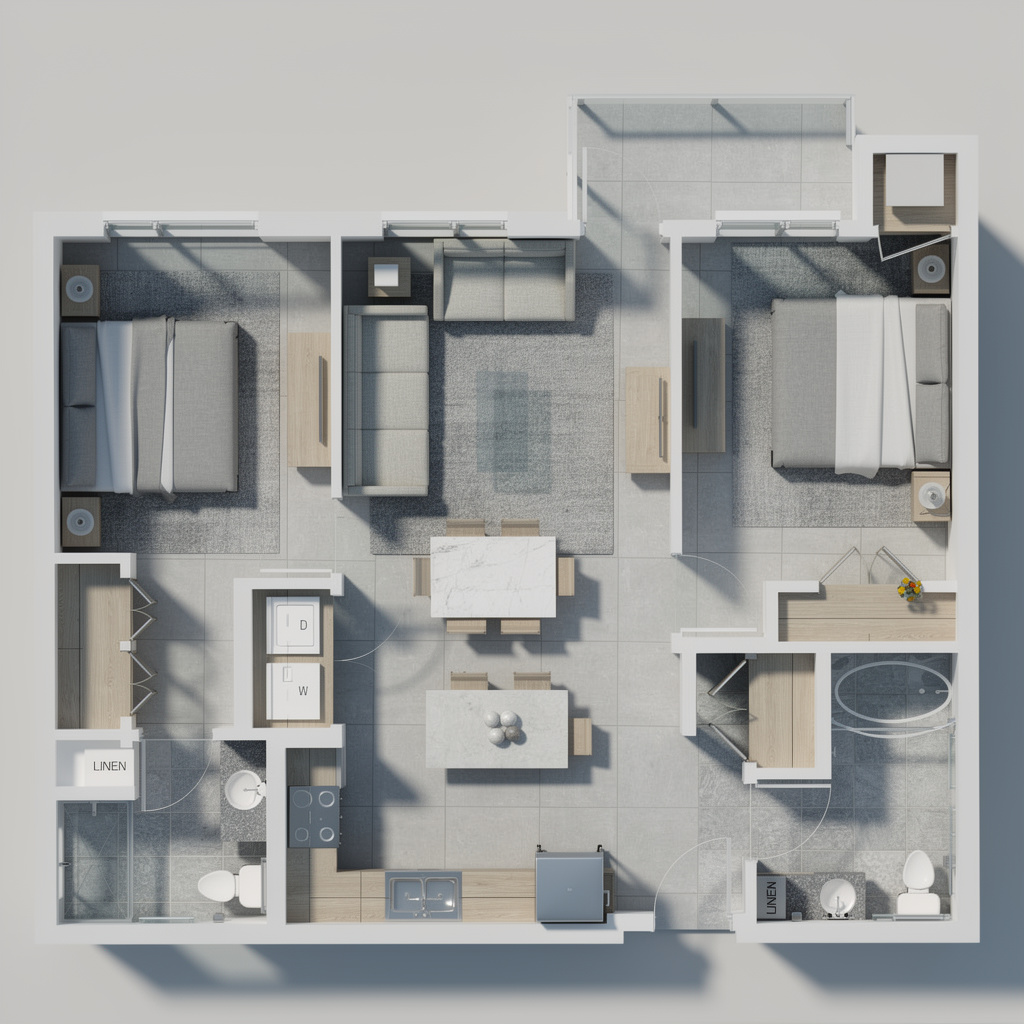
STYLE 01
Modern
Warm oak, white lacquer, charcoal tile
Material palette
Oak engineered wood flooring, white flat-front kitchen cabinets, dark charcoal bathroom tile, pearl matte walls.
Each style applies a full, coherent material language across flooring, walls, kitchen finishes, and bathroom tile — so the render reads as a real interior space, not a coloured floor plan.
Warm oak, white lacquer, charcoal tile
Oak engineered wood flooring, white flat-front kitchen cabinets, dark charcoal bathroom tile, pearl matte walls.
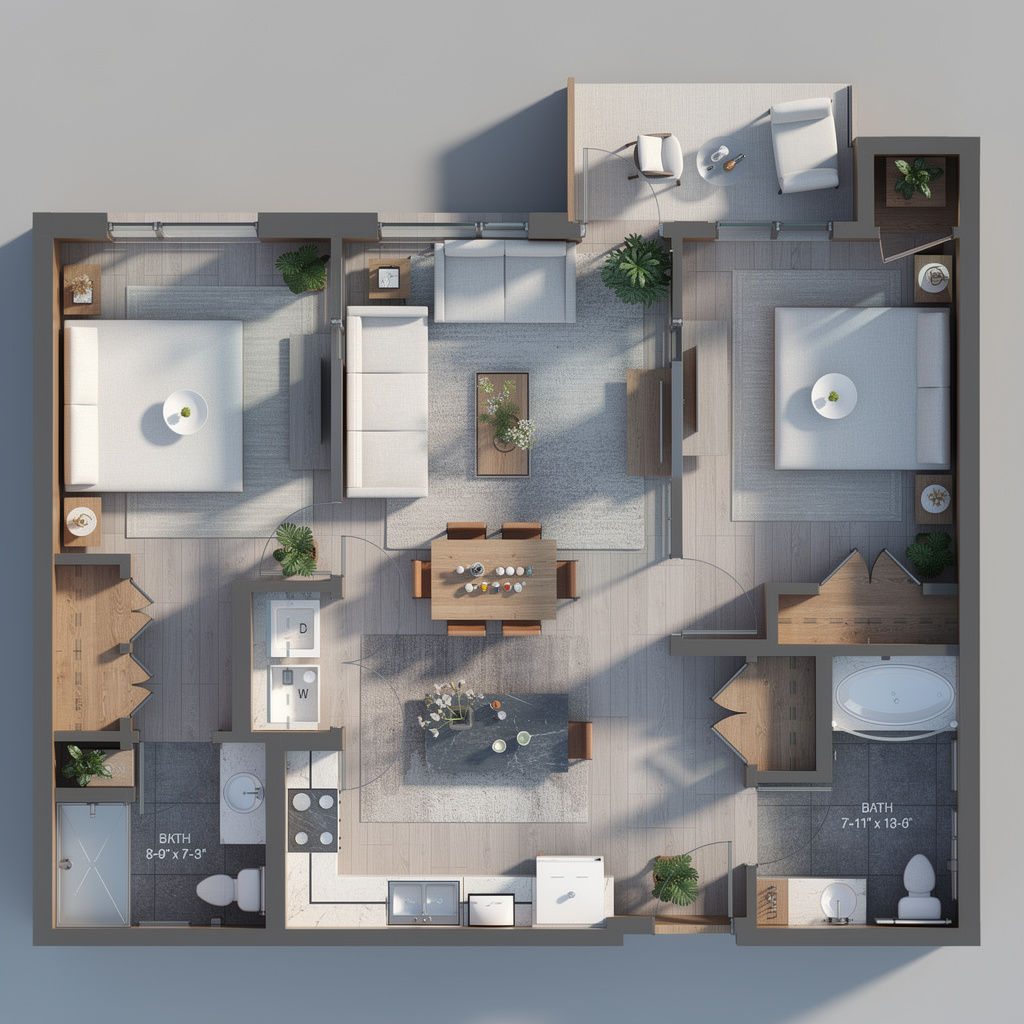
Calacatta marble, honey herringbone, brass hardware
Book-matched Calacatta tile in living areas, honey oak herringbone in bedrooms, brushed brass fixtures throughout.
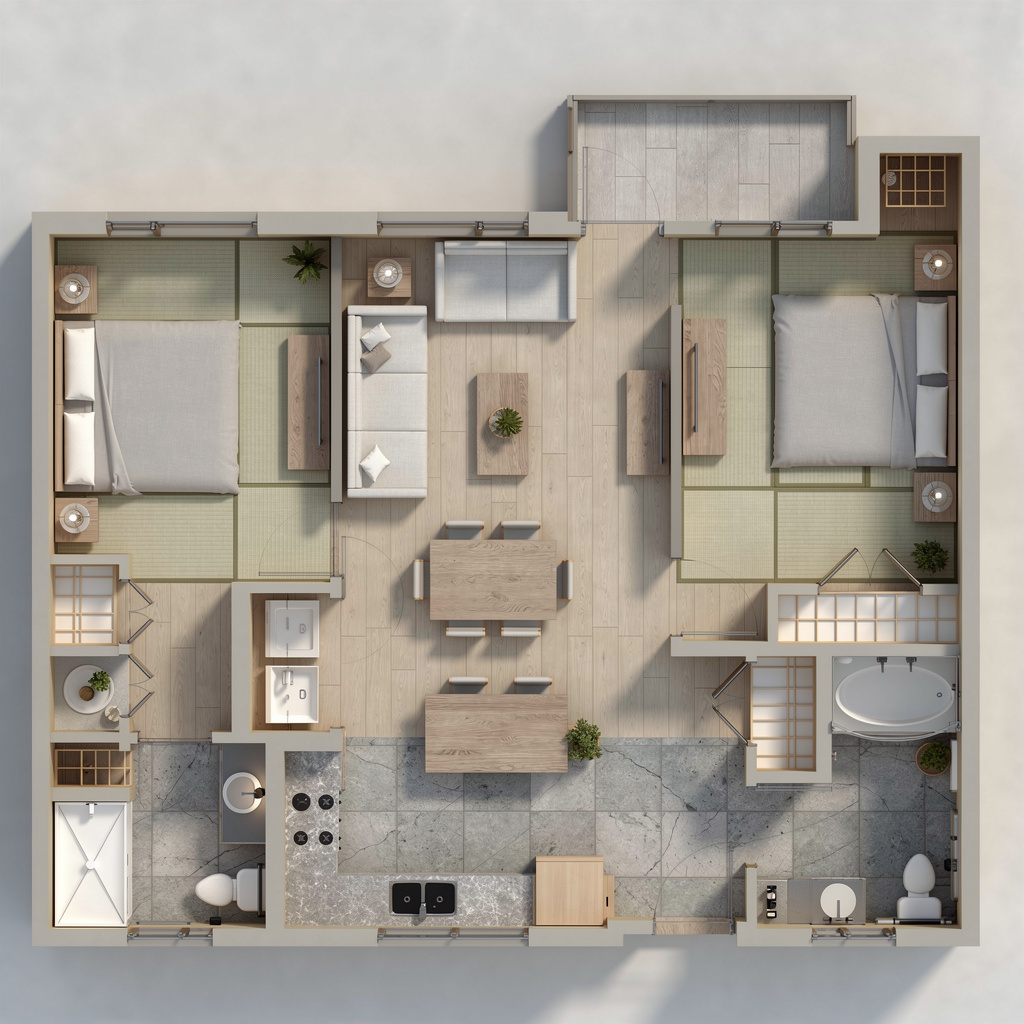
Ash wood, clay plaster, tatami panels
Pale ash flooring with matte oil finish, shikkui clay plaster walls, natural rush tatami panels in bedroom zones.
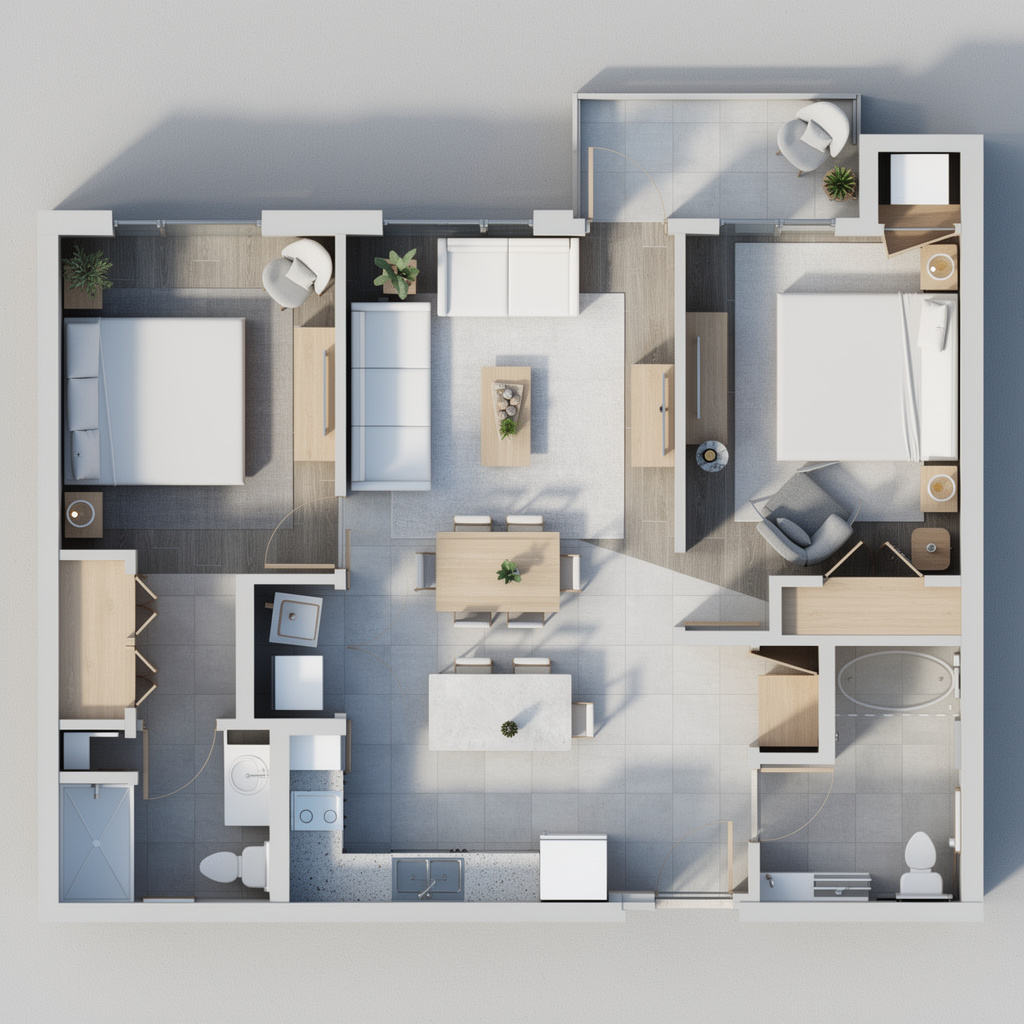
Light pine, white shaker, subway tile
Wide-plank light pine flooring, white shaker kitchen cabinets, classic subway tile bathrooms, warm cream walls.
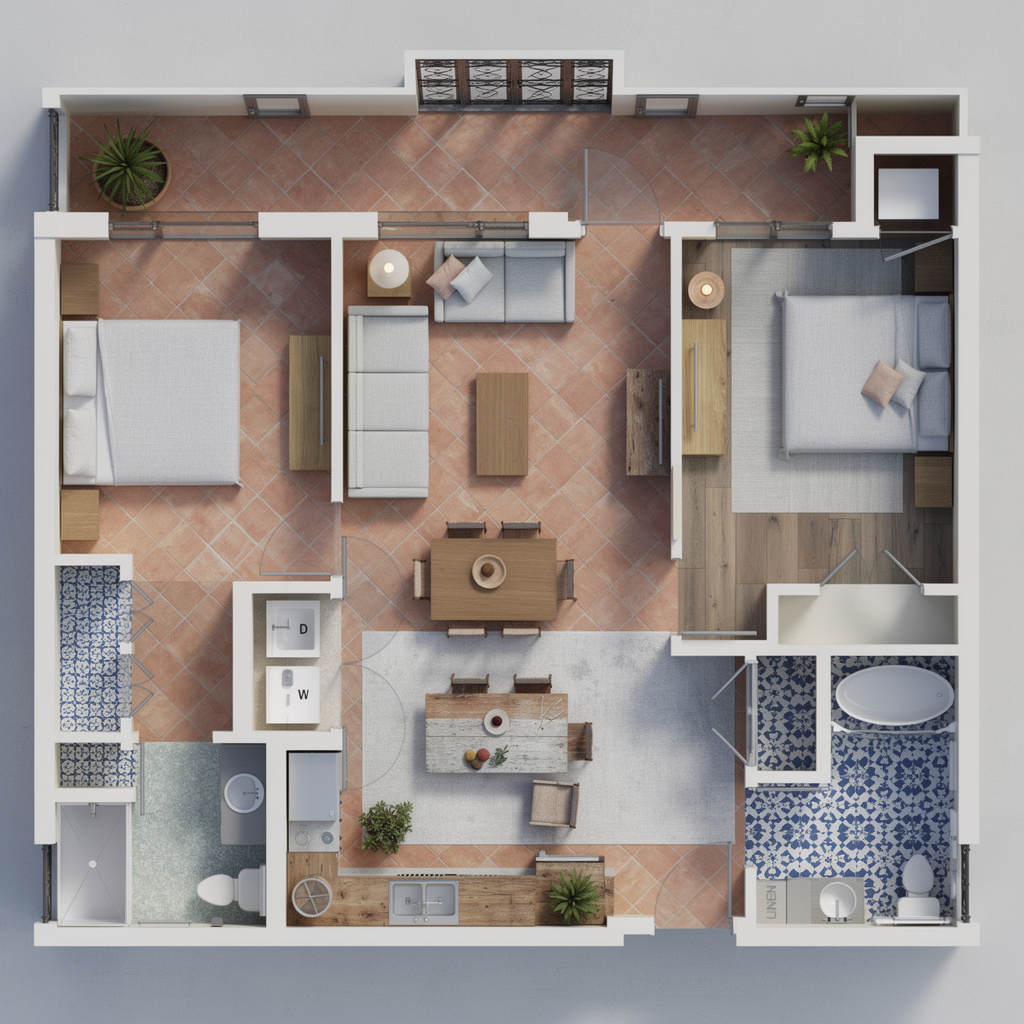
Terracotta tile, limewash plaster, aged oak
Hand-fired terracotta encaustic tile, warm limewash plaster walls, honey oak bedroom flooring, Zellige mosaic baths.
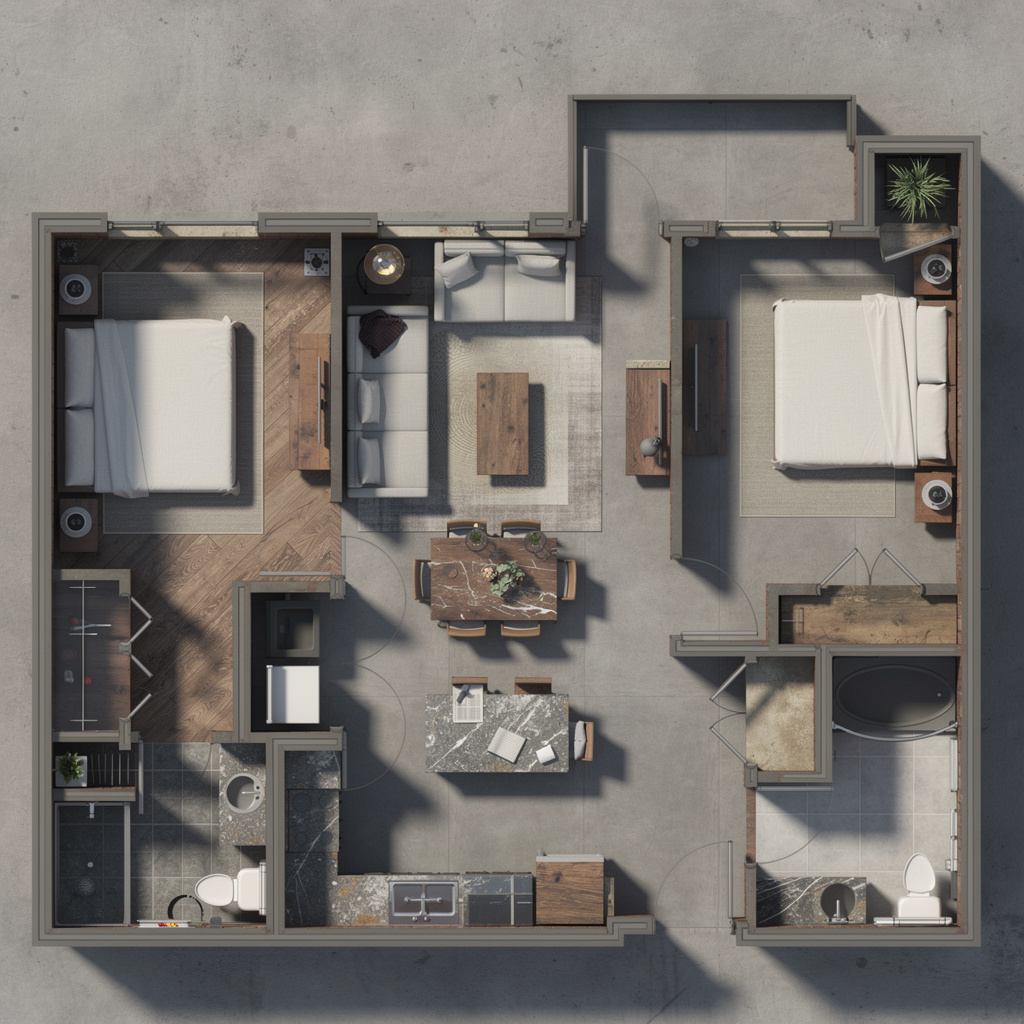
Polished concrete, matte black, reclaimed oak
Polished concrete screed flooring, matte black steel kitchen cabinets, reclaimed wide-plank oak in bedrooms.
Interactive .glb — drag, rotate, zoom
Switch to 3D Export mode to generate an interactive 3D mesh from your floor plan. Open in any glTF viewer — Blender, SketchUp, Three.js, or right here in the browser.
Try 3D Export →The strongest story here is speed: upload the floor plan you already have, pick a material style, and receive a presentation-quality render in under a minute. Seven styles, two output modes, one upload.
Take one floor plan and generate Modern, Japanese, or Mediterranean directions in minutes. Present the strongest options side by side before deciding on finishes.
Export your floor plan as PNG or JPG, upload it, and generate a photorealistic render in under a minute. No 3D modelling required — straight from blueprint to client-ready image.
The renderer reads room boundaries and layout structure from your image — it does not require a redraw or any modelling work.
Choose a material palette and the AI applies flooring, walls, and fixtures across the full plan in one pass — coherent space, not a generic overlay.
One upload can branch into 7 different style renders. Compare directions before the client meeting, not after.
No 3D modelling. No material assignment panels. No rendering licence. Upload the floor plan you already have and let the AI handle the rest.
Drag in any top-down blueprint — CAD export, scanned drawing, or digital plan. JPG, PNG, or WebP up to 10MB.
Pick from 7 architectural material palettes: Modern, Chinese Luxury, Japanese, Scandinavian, Mediterranean, Industrial, or Luxury Modern.
Generate a photorealistic 2D top-down render for presentations, or a 3D isometric view to communicate spatial depth and room relationships.
Download the rendered image at full resolution — present it, iterate, or use it as a design reference. Commercial use comes with any paid plan or the 24h HD Pass.
An AI floor plan renderer is a tool that transforms architectural 2D blueprints into photorealistic rendered images using artificial intelligence. Upload a top-down floor plan and the AI applies a full material palette — flooring, walls, fixtures — producing a presentation-quality visualization in under a minute, without any 3D modelling or rendering expertise.
Unlike traditional rendering pipelines that require hours of manual material assignment in software like V-Ray or Lumion, the AI floor plan renderer reads the layout structure directly from your blueprint and applies a coherent material language in one step. The result reads like a real interior space, not a generic floor plan overlay.
Generating a rendered floor plan is a three-step process:
Drag and drop or click to upload any top-down floor plan image (JPG, PNG, or WebP up to 10MB). CAD exports, scanned drawings, and digital plans all work.
Select from 7 architectural material styles (Modern, Japanese, Mediterranean…) and pick 2D Render or 3D Isometric output mode.
Click Generate. Your rendered floor plan appears in 20–40 seconds. Download at full resolution; paid plans and the 24h HD Pass add a commercial license for client decks, permits, and marketing.
AI floor plan rendering serves professionals who need to communicate spatial design quickly and convincingly:
Upload a blueprint, choose a style, generate in under a minute. No credit card required.